Create a Custom Report in SCCM
First create a SQL query, such as a custom hardware report in the SQL Management Studio.
Next open SCCM console and click on the reporting tab
Click on create report and select SQL base reports
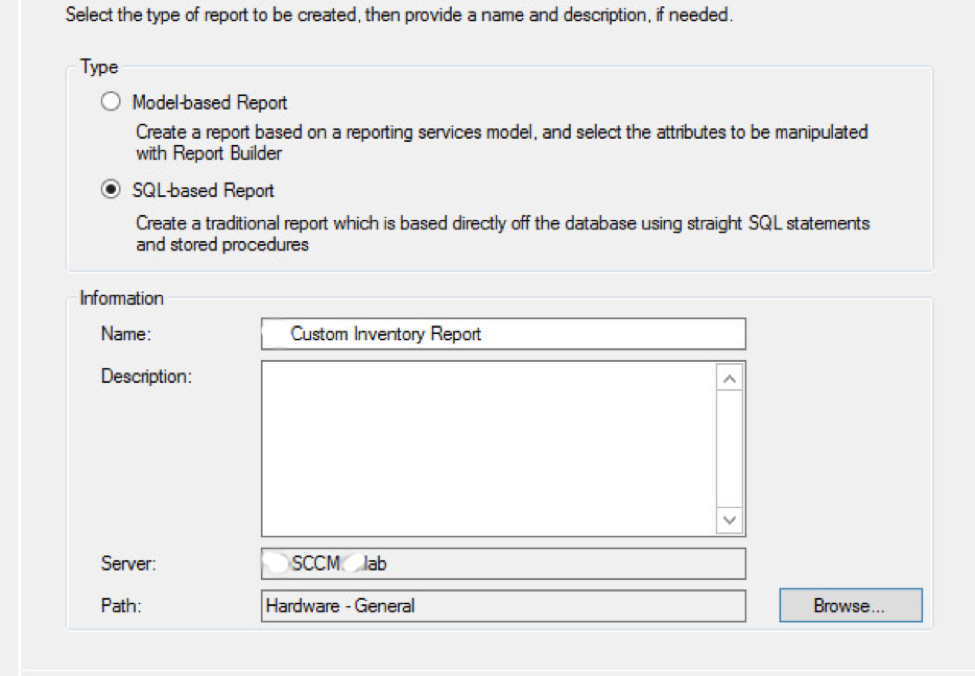
Click next twice and click close, this will bring up Report Builder 3.0.
Click table to enter a new SQL query

Within Report building select table and create a new dataset.
Select use current Windows user when login pop-up, login with your service account or account that has rights to create reports
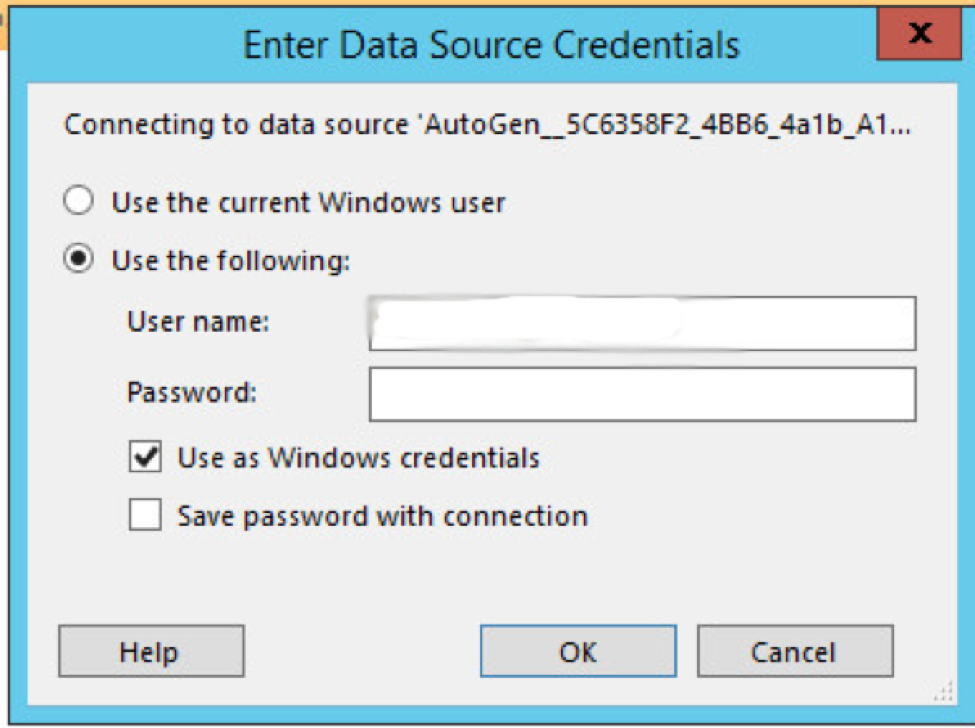
Select edit as text to enter SQL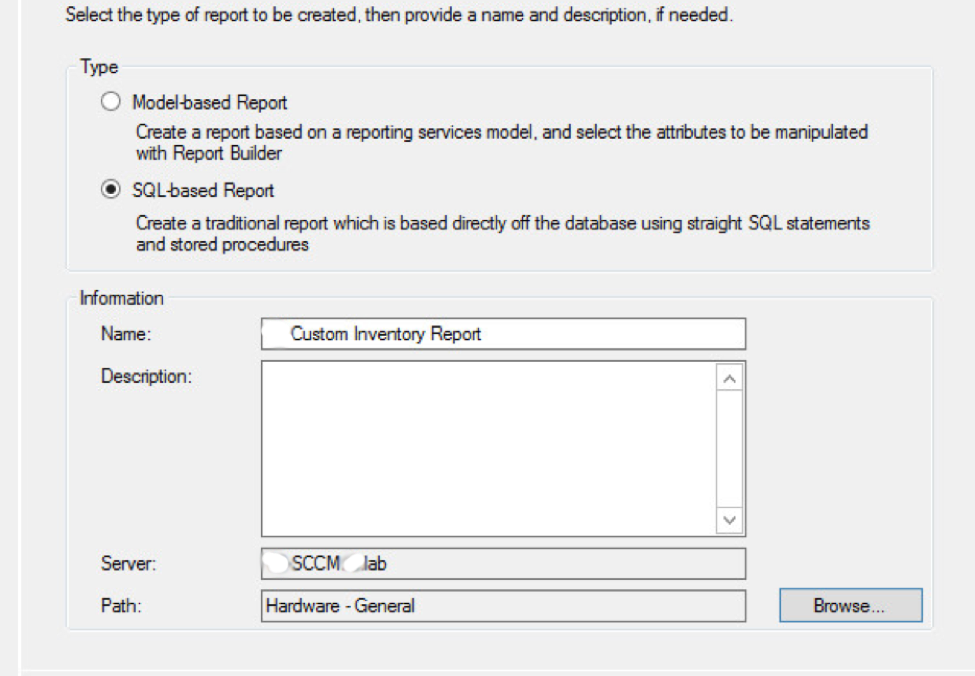
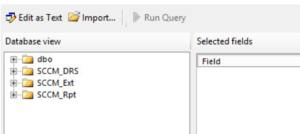
Click on run to ensure SQL query works and you see result in pane below
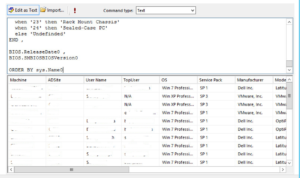
Click next to continue
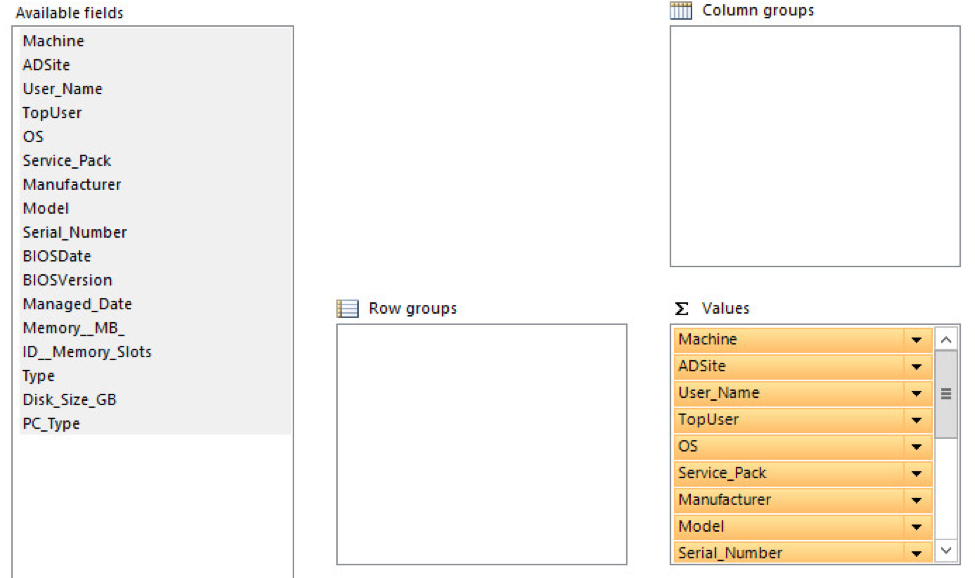
Select the available fields and drag them to Values fields, below I highlighted all fields and move to Value fields.
Click next to continue
Select a theme for report and click finish.
Close the X in upper right corner and save the report
To run the saved report, go to monitoring then reports
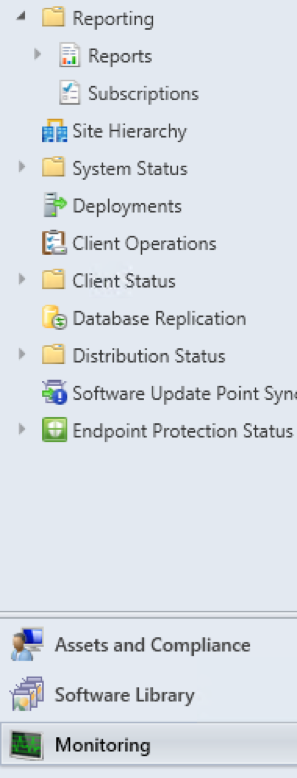
Expand the reports and select Hardware – General
Inside Hardware General then Custom Hardware Inventory
Please check out the SCCM Sql Queries Tab for some SQL queries for your SSRS Reports.